How to turn a NotebookLM Audio Overview into a video
Make the Audio Overview in Gemini Notebook, download it, cut the part worth showing, then let a whiteboard draw what the hosts say as they say it.
By the Chasca team 6 min read
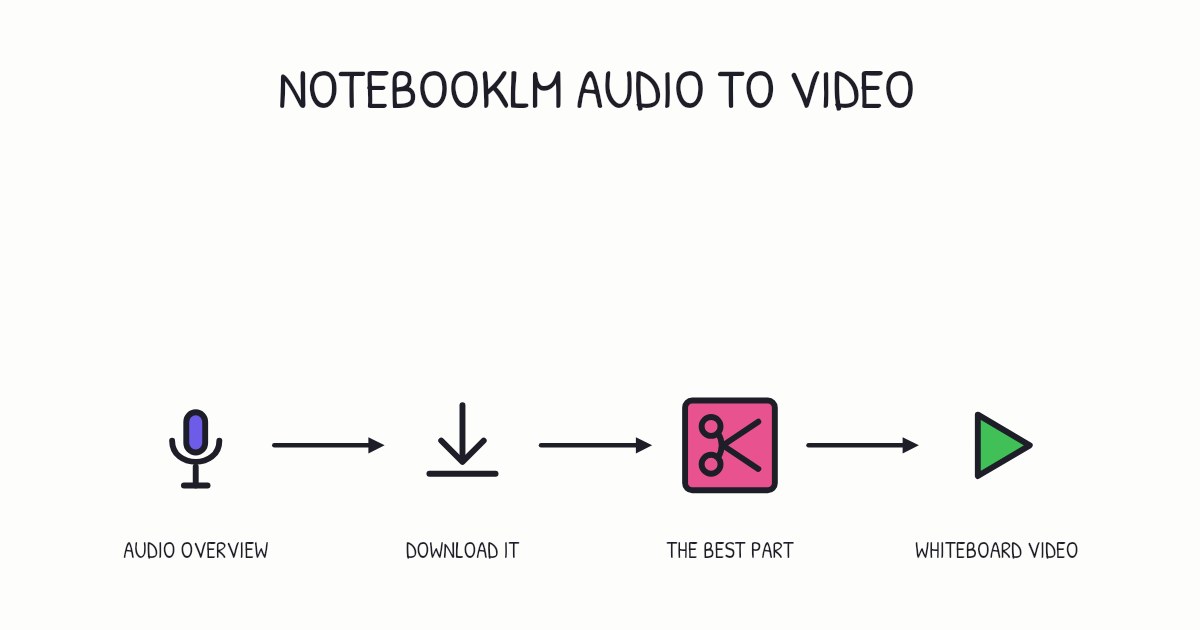
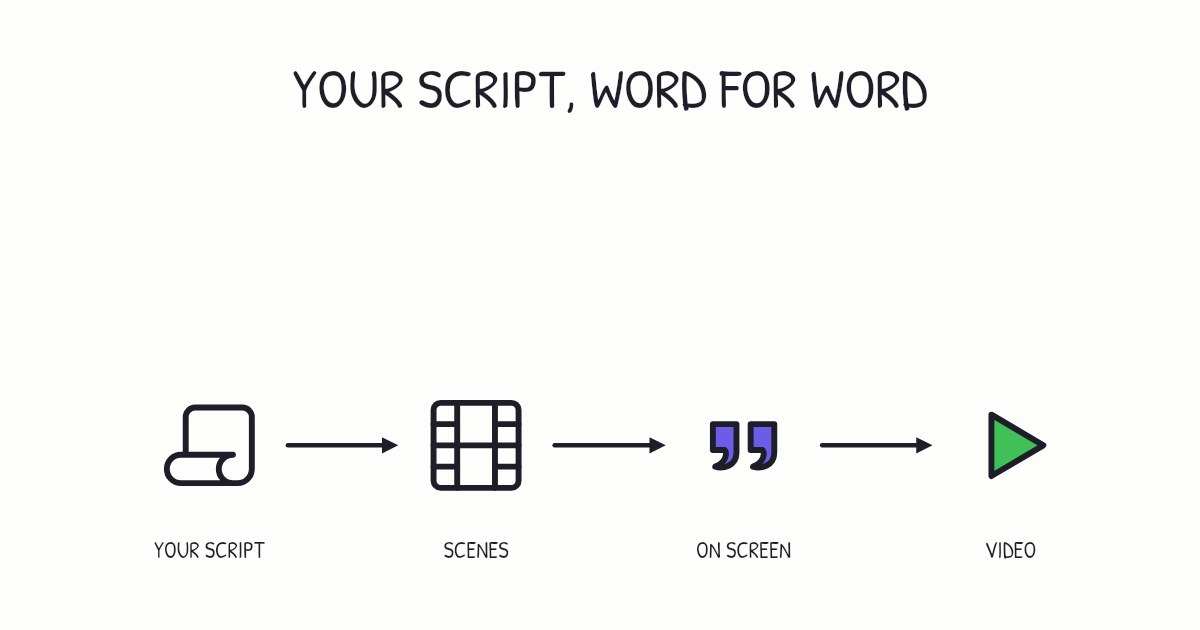
To turn a NotebookLM Audio Overview into a video, generate it in Gemini Notebook (NotebookLM’s new name), download the audio, cut out the part worth showing and give it to a tool that draws what the hosts say as they say it. In Chasca, you attach the file on the Create page and tick Use as the narration: the video keeps every word of the conversation, splits it into scenes at the ends of sentences and draws each idea in time with the voices. Google’s steps below come from its help pages, which we checked on 3 November 2026.
Why turn an Audio Overview into a video?
An Audio Overview is a spoken summary of your own sources, in most formats a conversation between two AI hosts. (Google renamed NotebookLM to Gemini Notebook in July 2026; it’s the same product.) Turned into a video, that summary can be watched with the sound off, shared in a feed and found in video search, and it shows what the hosts describe.
Pictures help, if they show what is said when it is said. In 11 out of 11 of Richard Mayer’s experimental comparisons, people who got words and pictures did better on problem-solving tests than people who got words alone, and pictures shown at the same moment as their words beat the same pictures shown before or after them. How to turn audio into a video has more of the research.
Gemini Notebook can also make a Video Overview of the same sources. Turn the Audio Overview into a video instead when you already like the conversation and want to keep it word for word, drawn on a whiteboard in time with the voices, in 16:9, 9:16 or 1:1, with captions. NotebookLM video overviews vs Chasca compares the two.
Which Audio Overview format should you pick?
Google’s help page lists four formats:
| Format | What Google says it is | As a video |
|---|---|---|
| Deep Dive (the default) | Two hosts unpack and connect topics from your sources in a lively conversation | A conversation-led explainer: cut out the few minutes worth showing |
| The Brief | A single speaker delivers the key takeaways in under two minutes | The easiest to turn into a short video |
| The Critique | Two hosts give a constructive evaluation of material such as an essay or a design doc | Feedback on a draft, for the people who wrote it |
| The Debate | Two hosts hold a formal, back-and-forth debate on the topic | Two sides of a question, for a class discussion |
You also choose the language (Audio Overviews come in more than 80), the length (Shorter, Default or Longer, which is English only), and you can type what the hosts should focus on or how expert they should be.
How do you make and download the Audio Overview?
- Open a notebook and add your sources. You need edit access to the notebook to generate an Audio Overview.
- In the Studio panel, select Audio Overview. In the generation panel, you can choose the format, the language and the length, and type a focus. Write the focus for your viewers, for example: “Explain photosynthesis to 14-year-olds, with one everyday example.”
- Wait a couple of minutes. It generates in the background, so you can keep working.
- Listen to all of it. Google notes that Audio Overviews, voices included, are AI-generated and may contain inaccuracies or audio glitches, so check every fact against your sources.
- Select Download. Some notebooks with a Google Play Books ebook as a source can’t download what they generate.
How do you pick the part worth showing?
- Fit your plan. In Chasca, a recording used as the narration runs from 4 seconds up to 1 minute on Free and up to 30 minutes on paid plans. If yours is longer, cut it first.
- Fit your viewers. Attention falls off sharply after about six minutes, so for a lesson, keep the stretch that explains one idea (how long a video should be).
- Cut at the end of a sentence, and leave the natural pauses in. Chasca trims the silence at the very start and end, and keeps the pauses in between, so the video keeps the hosts’ timing.
- Keep it in a common format. Chasca takes audio files (MP3, WAV, M4A, OGG, AAC or FLAC) and video files with the voices on them (MP4, MOV, WebM, MKV or M4V). Only the sound is used.
How do you turn it into a video with Chasca?
- Attach the file on the Create page.
- Tick Use as the narration on the attachment card. Add a line on what the video should show, or leave it to Chasca.
- Check the language. Pick it on the Create page, or let Chasca work it out from the recording.
- Watch it draw. Chasca writes down every word, splits the recording into scenes at sentence ends and draws each idea as the hosts say it.
- Change what you need. Turn subtitles on or off, switch the drawing style or add music, free. The words stay exactly as the hosts said them, and the captions use those words.
- Download the MP4 with subtitles, or share a link.
The video uses plan minutes like any other video of the same length. In an Arabic Audio Overview, numbers are written in Arabic-Indic digits on the board and in the captions. The voiceover page has the details.
What if you’d rather use another voice?
- Keep the words, change the voice. On the finished video, change the Voice: a narrator or one of your custom voices reads the same words in a new video, charged like a new one.
- Make a new script from it. Attach the Audio Overview without ticking Use as the narration. Chasca reads what was said and writes a new script for one of its narrators, or for your own custom voice, which also suits a video shorter than the recording.
What should you check before you publish?
- The facts. The hosts summarize your sources, and Google warns they can get things wrong. Check names, numbers and claims against the sources.
- Your rights. Google says it won’t claim ownership of the content you generate in Gemini Notebook, and that your use is subject to Google’s terms. It also asks you not to share copyrighted content without the rights to do so. The hosts retell your sources, so publish only what you have the right to share.
- The voices. Tell viewers that the hosts are AI voices, for example in the description.
- Captions and a transcript. Turn on captions, and put the transcript under the video.
A checklist
- The right format: The Brief for a short video, Deep Dive for a conversation.
- A focus written for your viewers.
- Every fact checked against your sources.
- One idea’s worth, cut at a sentence end: up to 1 minute on Free, 30 minutes on paid plans.
- Use as the narration ticked, with a line on what to show.
- Captions on, in the right frame: 16:9, 9:16 or 1:1.
Sources
- Google. NotebookLM is now Gemini Notebook, 16 July 2026. Accessed 3 November 2026.
- Google. Gemini Notebook Help: generate Audio Overview. Accessed 3 November 2026.
- Google. Gemini Notebook Help: privacy and terms of use. Accessed 3 November 2026.
- Mayer, R. E. (2002). Multimedia learning. Psychology of Learning and Motivation, 41, 85–139.
- Mayer, R. E., & Fiorella, L. (2014). Principles for reducing extraneous processing in multimedia learning: Coherence, signaling, redundancy, spatial contiguity, and temporal contiguity principles. In The Cambridge Handbook of Multimedia Learning (2nd ed.). Cambridge University Press.
- Chasca. Your voiceover.
Questions people ask
Yes. Download the Audio Overview from Gemini Notebook, the new name for NotebookLM, and give it to a video tool. In Chasca, attach the file on the Create page and tick Use as the narration. The video keeps every word as the hosts said it, and the board draws each idea in time with them.
Generate it in the Studio panel of your notebook, then select Download. Google's help page notes that some notebooks with a Google Play Books ebook as a source can't download what they generate.
The Brief, when you want a short video: Google describes it as a single speaker giving the key takeaways in under two minutes. Deep Dive, the default, is a conversation between two hosts, so cut out the few minutes worth showing. The Critique and The Debate suit feedback on a draft and the two sides of a question.
In Chasca, a recording used as the narration can run from 4 seconds up to 1 minute on Free, and up to 30 minutes on paid plans. It uses plan minutes like any other video of the same length. For a longer Audio Overview, cut out the part worth showing first.
Google says it won't claim ownership of the content you generate in Gemini Notebook, and your use is subject to Google's terms. The hosts retell your sources, so publish only what you have the right to share, and check the facts first: Google notes that Audio Overviews may contain inaccuracies or audio glitches.