How to turn an audio recording into a video
Turn a podcast, lecture or voiceover into a video: pick the right format, cut the part worth showing, draw what is said as it is said, and caption every word.
By the Chasca team 5 min read
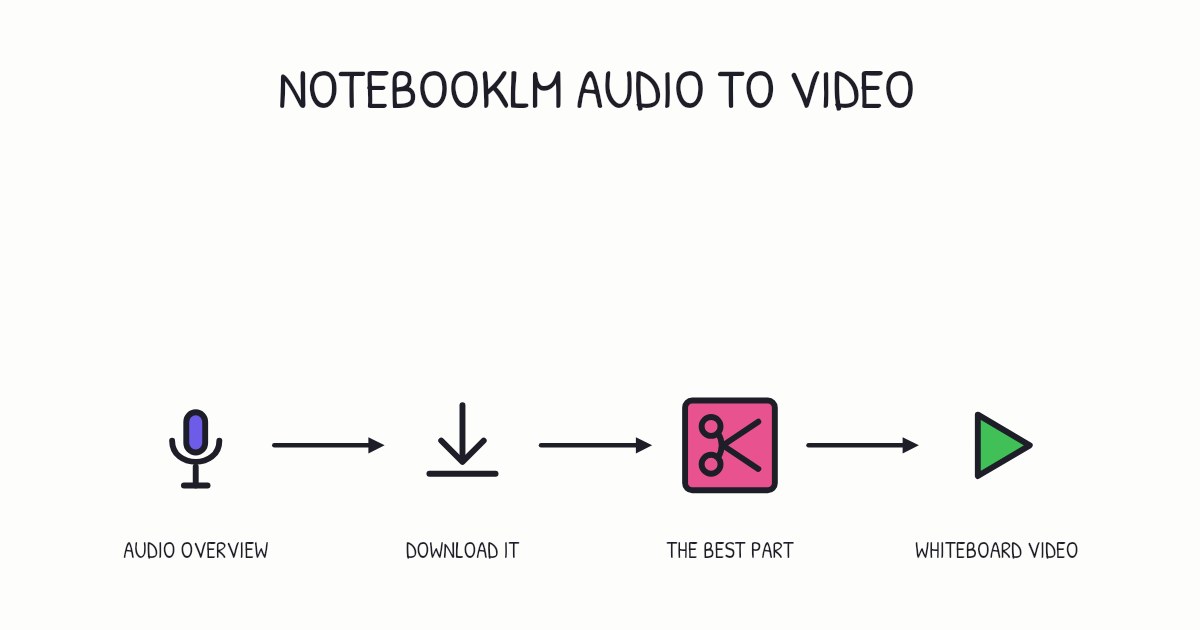
To turn an audio recording into a video, choose a format that suits the recording, cut the part worth showing, add pictures that appear at the moment their words are spoken, caption every word, and export the video in the frame your platform wants. A waveform with captions is the fastest option. A whiteboard animation that draws what you say as you say it does the most for understanding. In Chasca, you attach the recording on the Create page, tick Use as the narration, and get a narrated whiteboard video in your own voice, word for word.
Why turn audio into video?
Because that is where much of the audience now is. In Edison Research’s Podcast Consumer 2026 report, video overtook audio-only podcast consumption in the US for the first time in the third quarter of 2025: 82% of weekly podcast consumers actively watched video podcasts, against 78% who listened to audio-only ones. In the first quarter of 2025, YouTube was the service weekly podcast consumers used most often, at 32%.
Video also helps the recordings that were never podcasts: a lecture, a sales talk, a training session, a voiceover you paid for. A video can be watched with the sound off, shared in a feed and found in video search, and it shows what the words describe.
Which kind of video should you make?
| Format | What it shows | Good for | Effort |
|---|---|---|---|
| Audiogram | A waveform, a still image and captions | Promoting an episode in a feed | Minutes |
| Slideshow | Images or slides changing with the topic | Talks that already have slides | An hour or more |
| Filmed video | The speakers on camera | Interviews and conversations | Needs filming |
| Whiteboard animation | Drawings that appear as each idea is named | Explaining ideas, lessons, how things work | Minutes with AI, days by hand |
An audiogram gets attention but teaches nothing new: the picture never changes with the words. A filmed video needs a camera at the time of recording. When the recording explains something, a whiteboard animation shows it.
What do the pictures need to do?
Show what is being said, at the moment it is said. Three findings from multimedia learning research shape the pictures:
- Words with pictures beat words alone. In 11 out of 11 of Richard Mayer’s experimental comparisons, learners who got words and pictures did better on problem-solving tests than learners who got words alone, with a median effect size of 1.39.
- Timing matters. People learn more when a picture appears at the same moment as its words than when it comes before or after them: the temporal contiguity principle held in 9 out of 9 tests, with a median effect size of 1.22.
- Nothing extra. Decorative pictures, music and sound effects that don’t explain anything hurt more than they help: the coherence principle held in 23 out of 23 tests, with a median effect size of 0.86.
So the job is to draw the idea the speaker is describing, when they describe it, and leave everything else out.
How do you turn a recording into a video, step by step?
- Pick the part worth showing. A five-minute explanation inside a one-hour episode makes a better video than the whole hour. Cut at the end of a sentence.
- Clean up the sound. Trim long silences at the start and end, and remove loud noises. Leave the natural pauses: viewers need them too.
- Get a transcript. You need it for the captions, and it shows you where each idea starts and ends.
- Plan one picture per idea. Read the transcript and mark where a new idea begins. Each one gets its own scene.
- Time the pictures to the words. Each drawing appears when its word is spoken, not before.
- Caption every word. Captions help people watching without sound, people watching in a second language and anyone with hearing loss. Psychologist Morton Ann Gernsbacher’s review found that captions improve comprehension of, attention to and memory for video.
- Export for the platform. 16:9 for YouTube and websites, 9:16 for Shorts, Reels and TikTok, 1:1 for most feeds.
- Publish the transcript too. Put it under the video or in the description. Search engines and AI assistants can read it, and the video cannot be read without it.
How do you do it with Chasca?
- Attach the recording on the Create page: an audio file such as MP3, WAV or M4A, or a video with your voice on it, such as MP4 or MOV.
- Tick Use as the narration on the attachment card. Add a line on what the video should show, or leave it to Chasca.
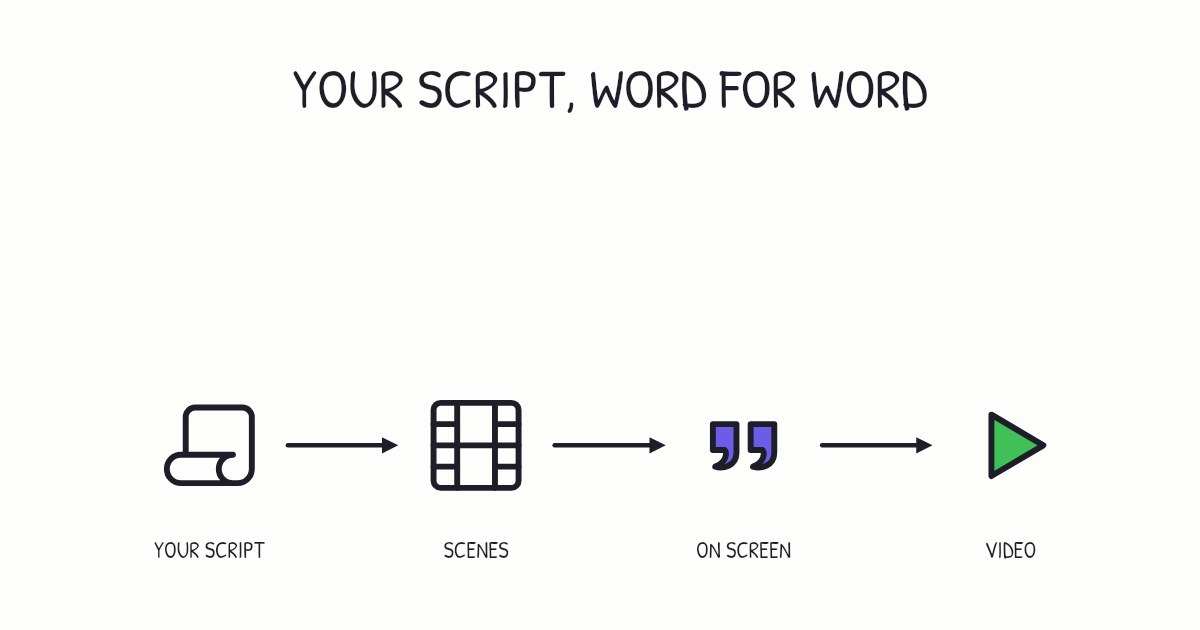
- Watch it draw. Chasca writes down every word, splits the recording into scenes at your sentence ends and draws each idea in time with your voice. Only the silence at the very start and end is trimmed.
- Change what you need. Turn subtitles on or off, switch the drawing style or add music, free. The words stay as you said them, because they are your recording.
- Download the MP4 with subtitles, or share a link.
Recordings can run up to 1 minute on the free plan and up to 30 minutes on paid plans. In an Arabic recording, numbers are written in Arabic-Indic digits on the board and in the captions. The voiceover page has the details.
If you would rather have a shorter video than the recording, attach it without ticking Use as the narration: Chasca reads what was said and writes a new script for one of its narrators, or for your own custom voice.
A checklist for turning audio into video
- A segment of a few minutes, cut at a sentence end.
- Silence trimmed at the start and end, natural pauses kept.
- One picture per idea, drawn when it is named.
- No decoration that the words don’t mention.
- Captions for every word, and a transcript beside the video.
- The right frame: 16:9, 9:16 or 1:1.
Sources
- Edison Research (2026). The Podcast Consumer 2026. SSRS.
- Edison Research (2025). Edison Research’s top 10 findings of 2025.
- Mayer, R. E. (2002). Multimedia learning. Psychology of Learning and Motivation, 41, 85–139.
- Mayer, R. E., & Fiorella, L. (2014). Principles for reducing extraneous processing in multimedia learning: Coherence, signaling, redundancy, spatial contiguity, and temporal contiguity principles. In The Cambridge Handbook of Multimedia Learning (2nd ed.). Cambridge University Press.
- Gernsbacher, M. A. (2015). Video captions benefit everyone. Policy Insights from the Behavioral and Brain Sciences, 2(1), 195–202.
Video transcript What the narrator says in the 1:03 explainer above.
Audio into video? Pick a format, cut a segment, draw ideas as spoken, caption every word, and export. Like an illustrated recipe, show each step when named. In the US in 2025, 82% of weekly podcast consumers actively watched video podcasts, against 78% who listened to audio-only ones.
An audiogram shows a waveform and captions. Slides suit talks; filming shows speakers. Whiteboard drawings explain ideas as they're named. Timing matters: the temporal contiguity principle held in 9 out of 9 tests, with a median effect size of 1.22. Skip decoration.
Start with a clean segment, and type up what was said. Plan one picture per idea, time the drawings to the words, caption every word, and publish the transcript too. In Chasca, you just tick one box on the Create page. Quick check: when should a picture appear? Right as it is named.
Questions people ask
Pick the format first (a waveform with captions, a slideshow, or an animation that draws what you say as you say it), then cut the part worth showing, add pictures that appear when their words are spoken, caption every word and export it in the frame your platform wants. In Chasca, you attach the recording on the Create page and tick Use as the narration, and the board draws in time with your words.
Yes, and it is worth it. In Edison Research's 2026 report, 82% of weekly podcast consumers in the US actively watched video podcasts, more than the 78% who listened to audio-only ones, and YouTube was the service weekly consumers used most often. Pick a segment of a few minutes, add visuals that follow the conversation, and caption it.
Yes, when they show what is being said. In Richard Mayer's experiments, people who got words and pictures did better on problem-solving tests than people who got words alone in 11 out of 11 comparisons, with a median effect size of 1.39, and pictures shown at the same moment as their words beat the same pictures shown before or after.
It depends on the tool. Some rewrite a recording into a new script. With Chasca's Use as the narration, the video keeps every word as you said it, the captions use your words, and only the silence at the very start and end is trimmed.