How to turn a PDF into a video (with narration)
Three ways to turn a PDF into a narrated video, from recording your screen to letting AI write the script and draw it for you. Steps, tips and what to avoid.
By the Chasca team 4 min read
The quickest way to turn a PDF into a narrated video is to give the PDF to an AI video tool that writes a script from it, draws the key ideas and records the narration. If you’d rather do it by hand, you can record yourself talking through the pages, or rebuild the content as slides with a voiceover. Each route suits a different job, so here are all three.
Before you start: what are you actually explaining?
A PDF is rarely one idea. A 30-page policy might hold three rules people actually need; a research paper has one finding worth sharing. Before you pick a method, write one sentence:
After watching, the viewer will know ______.
That sentence decides the length, the script and what gets left out. For most documents, the honest answer fits in a one- to three-minute video.
Method 1: Record yourself talking through the PDF
Open the PDF, start a screen recorder (the one built into your computer is fine), and talk through the key pages.
- Good for: internal walkthroughs, quick updates, anything that won’t be reused.
- Watch out for: scrolling pages full of small text is hard to follow on a phone, and a recording is painful to update. One changed number means recording again.
Tips: zoom in on the section you are discussing, keep it under five minutes, and write your three talking points down first so you don’t wander.
Method 2: Rebuild it as slides with a voiceover
Pull the key points into a slide deck, one idea per slide, then record narration over it. PowerPoint and Keynote can both export a deck with recorded narration as a video, and our guide to turning a PowerPoint into a video has the steps.
- Good for: training that needs your brand template, or a deck you are already building.
- Watch out for: it takes hours, and slides with bullet points are the least engaging kind of video. An analysis of 6.9 million viewing sessions found drawings held attention better than slides.
Tips: use pictures instead of bullet lists, keep each slide on screen for under 30 seconds, and read your script aloud at a relaxed pace, around 150 words a minute.
Method 3: Let AI turn the PDF into a whiteboard video
AI video tools can now read the document, decide what matters, write a script, illustrate it and narrate it. With Chasca the steps look like this:
- Upload the PDF in the prompt box. Documents of up to 400 pages work, as long as they contain real text.
- Say what to focus on (optional). “Explain the three habits this policy asks of everyone” gets a sharper video than no instructions at all.
- Pick a length, a voice and a drawing style, or leave them on Auto. There are six drawing styles, from classic marker to chalkboard and blueprint.
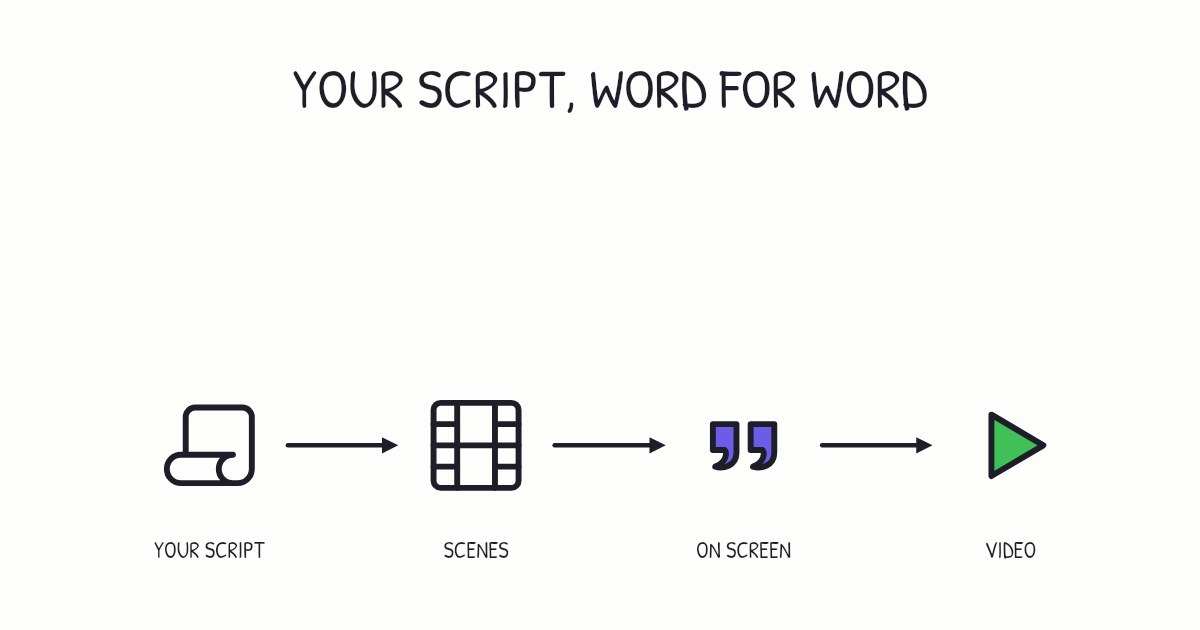
- Generate. Chasca writes the script from your document, splits it into scenes, and draws each scene stroke by stroke in time with the narration, usually in about a minute.
- Change what you need. Turn subtitles on or off, switch the drawing style or add music, free. The narration and drawings stay as they are.
- Share it. Download the MP4 with subtitles, or send a link. Landscape, vertical and square formats are all available.
- Good for: policies, reports, papers, handbooks and specs you want people to actually understand, and documents that change often.
- Watch out for: scanned PDFs without a text layer, and documents that are mostly tables. Give the tool a focus line so it doesn’t try to cover everything.
You can see a real example on our examples page: a three-page security policy PDF turned into a video just over a minute long, with the original PDF there to download.
Making a video of a research paper for a journal? See how to make a video abstract.
Tips that make any PDF video better
- Explain, don’t read. Nobody wants the document read aloud. Pick the few ideas that matter and explain them in plain words.
- Keep the numbers exact. If a figure matters, say it and show it. Check every number in the draft against the PDF.
- One idea per scene. When one scene holds two points, split it.
- End with a question. “Which of the three habits do you skip most often?” helps people remember far more than a summary does.
- Link back to the source. Put the video at the top of the document, or the document under the video, so people can dig deeper.
Which method should you choose?
| If you need… | Choose |
|---|---|
| A throwaway walkthrough, today | Screen recording |
| Your exact slide template and brand | Slides with a voiceover |
| A clear, reusable video you can remake when the document changes | An AI whiteboard video |
Sources
- Guo, P. J., Kim, J., & Rubin, R. (2014). How video production affects student engagement: An empirical study of MOOC videos. Proceedings of the ACM Conference on Learning at Scale.
Video transcript What the narrator says in the 1:24 explainer above.
Picture packing a suitcase: take only what matters. Want a narrated video from a PDF? The quickest route is an AI tool: it writes the script, draws key ideas, and records the voice. First decide what viewers need to know.
Need a throwaway walkthrough? Record your screen and talk through key pages; zoom in so phone viewers can follow. Need your brand template? Build slides with voiceover, one idea per slide. An analysis of 6.9 million viewing sessions found drawings held attention better than slides.
For a reusable video, upload your PDF to Chasca with a focus line. Choose a length, voice, and drawing style. It scripts, draws, and narrates scenes you can edit individually. Pack only what matters. How does AI turn the PDF into video? It chooses key ideas, then scripts, draws, and narrates.
Questions people ask
Yes. You can record your screen with free tools, and in Chasca your first two videos are free, up to a minute each, with a small watermark and no card required.
Only if the PDF has real text in it, meaning you can select the words. A scan that is only pictures of pages needs to go through OCR (text recognition) first. Most scanner apps and Adobe Acrobat can do that.
In Chasca, up to 400 pages. It works from up to about 25,000 words of the text, so for a long report, upload the chapter you want explained or say what the video should focus on.
When the script is written from your document, the figures, names and terms come from it. Always check the draft before you share the video, and if a line is off, fix it in the document and make the video again.