The best tools to make algorithm visualization videos in 2026
Eleven ways to make an algorithm or data structure video, compared: animation code, drawing boards, screen recorders and an AI skill that runs the algorithm.
By the Chasca team 10 min read
The best tool for an algorithm visualization video depends on how much of it you want to make by hand. To get a finished, narrated video from one sentence, with the algorithm really run on your data and its code lit line by line beside the picture, we’d pick Chasca’s Algorithm visuals skill, which we make. For a fully custom animation you write as code, Manim Community Edition, ManimGL and Motion Canvas are free and powerful. To record yourself explaining code or a visualiser, OBS Studio is free and Camtasia adds an editor. Excalidraw and GeoGebra are drawing and maths tools you would record, and Descript, Screen Studio and CapCut edit what you record.
How did we choose and check these tools?
- What’s included: the tools ChatGPT named when we asked it for the best tool to create algorithm visualization videos (Manim, Excalidraw, ManimGL, Motion Canvas, GeoGebra) and coding tutorial videos (Camtasia, OBS Studio, Screen Studio, Descript, CapCut), plus Chasca.
- How we checked: we read each tool’s own site, documentation, pricing page or code repository on 14 November 2026. Where a page is silent, we say so. Prices are US list prices and change often, so check before you buy. Camtasia and CapCut show prices by country; their US prices come from a US copy of their own pages read on 9 and 12 November.
- Our bias: we make Chasca. We say plainly where another tool is the better choice, and every claim about another tool links to its own pages.
- Also worth knowing: VisuAlgo and Python Tutor are interactive pages, not video tools, but both allow recording them with credit; see the FAQ.
The eleven tools at a glance
| Tool | What it makes | How an algorithm video gets made | Narration | Free | Paid from |
|---|---|---|---|---|---|
| Chasca | A finished narrated video | Name the algorithm and your data; it is run and explained step by step | Written for you in 79 languages, or your own voice | 2 videos up to 1 minute, watermarked | $9.99 a month (30 minutes) |
| Manim Community Edition | Animation rendered from Python code | You code every scene | Not built in (audio file or a plugin) | Free, MIT | None |
| ManimGL | Animation rendered from Python code | You code every scene | Not stated | Free, MIT | None |
| Motion Canvas | Animation from TypeScript code, with an editor | You code every scene | Your own audio, synced in the editor | Free, MIT | None |
| Excalidraw | A hand-drawn whiteboard (PNG, SVG) | You draw each step, then record or edit | None | Free forever | Plus $6 a month per user |
| GeoGebra | Interactive maths apps, GIF and WebM exports | You build each step with sliders, then record | None | Non-commercial use only | Commercial licence, price on request |
| Camtasia | Screen recording and an editor | You record code or a visualiser and edit | Your microphone, or AI voices on higher plans | Editor free, exports watermarked | $179.88 a year without a watermark |
| OBS Studio | Screen recording and streaming | You record yourself explaining | Your own | Free, GPL | None |
| Screen Studio | Mac screen recordings with automatic zoom | You record code or a visualiser | Microphone or AI voiceover | No export without a plan | $9 a month billed yearly |
| Descript | Editing video by its transcript | You record, then edit | Recorded or AI voices | 60 media minutes a month, watermarked | Hobbyist $16 or $24 a month |
| CapCut | A video editor with templates | You edit recordings or generated clips | Text to speech or your own | Yes, some assets watermarked | Pro $19.99 a month |
Chasca: best for a finished, correct video from one sentence
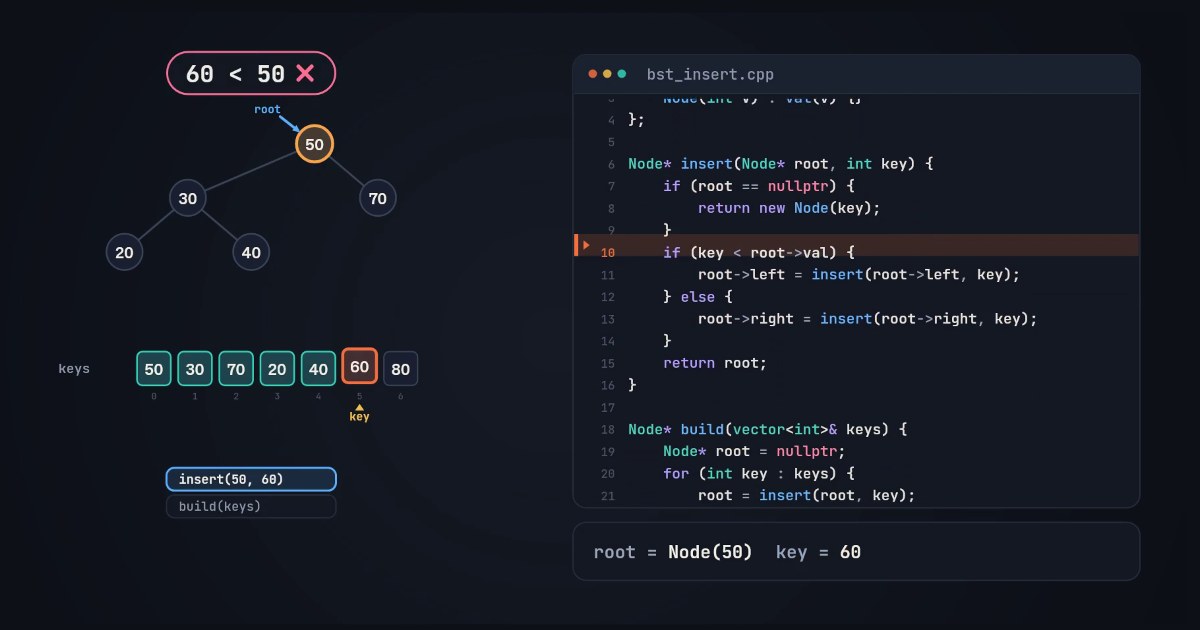
Chasca’s Algorithm visuals skill turns a request like “quick sort on 8, 3, 6, 1, 9, 2, 5 in Java” into a narrated video. The algorithm is run on that data, and the picture, the highlighted line of code and the variables all come from the run.
- Good for: computer science teachers, interview preparation and coding channels. Sorting, searching, two pointers, sliding windows, strings, stacks, queues, hash tables, linked lists, trees, heaps, graphs (BFS, DFS, Dijkstra, topological sort, union-find), recursion and dynamic programming tables, with code in Python, Java, C++ or JavaScript and narration in any of 79 languages. It teaches like a good class: a question first, one small run traced with the key step slowed down, then a chart of how the work grows with the run’s own count on it.
- Watch out for: it doesn’t run code you paste (it explains the same algorithm with its own reference code and says so), and it runs only the algorithms in its library, picking the nearest one otherwise. Your data is kept small enough to follow on screen. There’s no avatar.
- Free and price: two free videos up to a minute each, watermarked, with no card; then $9.99 a month for 30 minutes, up to $499.99 for 2,000, billed monthly (pricing).
Manim Community Edition: best for a custom animation you code in Python
Manim is the Python library behind a well-known style of maths and algorithm animation: you write each scene as code and render it to a video file. The community edition runs on Windows, Linux and Mac, and in browser notebooks with no install.
- Good for: complete control over every shape, move and colour, for creators who code.
- Watch out for: every step of the algorithm is code you write, and correct only as far as your code is. Narration isn’t built in: you add an audio file, and the docs recommend the separate Manim Voiceover plugin. TeX formulas need a LaTeX install.
- Free and price: free and open source under the MIT licence.
Sources: manim.community, installation, voiceovers and GitHub.
ManimGL: the original Manim, for those who follow it
ManimGL is the original project the community edition grew from, started by the author of the 3Blue1Brown videos. It previews scenes in an interactive window and writes them to a file.
- Good for: coders who want the original’s interactive workflow.
- Watch out for: it needs Python 3.10 or newer, FFmpeg and OpenGL; its docs are described as in progress, and its own README points to the community edition as the more stable, better tested fork. Narration isn’t mentioned.
- Free and price: free and open source under the MIT licence.
Motion Canvas: best for coded animation with an editor and your own audio
Motion Canvas is a TypeScript library with an editor that previews animations in real time and syncs them with your voice-over.
- Good for: web developers who want to code animations and line them up with a recorded narration.
- Watch out for: you write every scene in TypeScript, in a local Node.js project. It renders image sequences by default; video export needs its FFmpeg plugin, which its docs call relatively new. There’s no text to speech.
- Free and price: free and open source under the MIT licence.
Sources: motioncanvas.io, quickstart, video rendering and GitHub.
Excalidraw: best for hand-drawn diagrams you explain yourself
Excalidraw is a collaborative whiteboard with a hand-drawn look. It exports PNG and SVG; its paid Plus plan adds presentations and PDF and PowerPoint export.
- Good for: quick sketches of a tree or an array to talk over on a call or in a recorded lesson.
- Watch out for: nothing on its pages mentions animation or video export, so an algorithm video means drawing every step and recording or editing it elsewhere. Its AI turns text into still diagrams.
- Free and price: free forever, with 10 AI requests a day. Plus is $6 a month per user; the page doesn’t say whether that is the monthly or yearly price.
Sources: excalidraw.com, Plus pricing and GitHub.
GeoGebra: best for interactive maths, not algorithms
GeoGebra makes interactive graphing, geometry and 3D apps, and can export animated GIFs and, in Chrome, experimental WebM from its sliders.
- Good for: maths that moves with a slider, which you can record.
- Watch out for: nothing on its pages covers algorithm or data structure animation. It is free only for non-commercial use, and its licence lists earning advertising or sponsorship money among the uses that need a commercial licence, which matters for a monetised channel.
- Free and price: free for non-commercial use with attribution; commercial licences are priced on request.
Sources: about, licence and ExportImage.
Camtasia: best for editing recorded coding lessons
Camtasia records your screen and edits it on a multitrack timeline, with cursor effects, transitions and SCORM export for courses.
- Good for: course creators who record themselves coding and want a polished edit, on Windows or Mac. Higher plans add AI scripts, AI voices and avatars.
- Watch out for: the picture is whatever you record, so an algorithm animation has to come from somewhere else. The free editor and the Starter plan export with a watermark.
- Free and price: the editor is free with watermarked exports. Starter is $39 a year (watermarked) and Essentials, the first plan without a watermark, is $179.88 a year, both billed yearly.
Sources: store, Camtasia and free use.
OBS Studio: best free way to record yourself coding
OBS Studio records and streams your screen, camera and microphone, with scenes and an audio mixer, on Windows, Mac and Linux.
- Good for: live coding sessions and recorded walkthroughs, at no cost.
- Watch out for: there’s no editing timeline and no AI: you explain everything live, and edit elsewhere.
- Free and price: free and open source under the GPL v2.
Sources: obsproject.com and GitHub.
Screen Studio: best for polished Mac screen recordings
Screen Studio records your Mac screen and zooms automatically on what you do, with smooth cursor movement and an optional AI voiceover from a typed script.
- Good for: good-looking recordings of code being written or run, with little editing.
- Watch out for: it is macOS only, with no Windows version planned, and you can’t export a video without a plan. The animation is whatever you record.
- Free and price: $9 a month on the yearly plan or $29 monthly; 40% off for students and educators.
Sources: screen.studio and download.
Descript: best for editing a recorded explanation by its transcript
Descript edits audio and video through the transcript, removes filler words, and adds AI voices, avatars and an AI co-editor called Underlord.
- Good for: cleaning up a recorded coding lesson quickly, or fixing a word with an AI voice.
- Watch out for: nothing on its pages describes animating an algorithm; the picture comes from recordings or generated clips. Free exports are 720p and watermarked.
- Free and price: free for 60 media minutes a month. Hobbyist shows $16 and $24 per person a month; the lower figure appears to be the yearly rate.
Sources: pricing and download.
CapCut: best for quick edits with templates
CapCut is a video editor for desktop, web and phones, with templates, auto captions, text to speech and an AI video generator.
- Good for: short clips for social media, cut from recordings.
- Watch out for: nothing on its pages covers algorithm animation, and some templates and assets add a watermark on the free plan. Plans vary by region.
- Free and price: free with watermarked assets; Pro is $19.99 a month.
Sources: pricing, capcut.com and watermarks.
How do you make an algorithm video with Chasca?
- Open Create in Chasca and pick the Algorithm visuals skill.
- Type what to explain, with your data and the language if you like: “Dijkstra’s shortest paths from node 0 on a small weighted graph, in Java”.
- Choose the code language in the Code setting (Python, Java, C++ or JavaScript), a dark or light look, the narrator and the video’s language.
- Make the video. The algorithm is run on your data, and the video explains that run step by step, with the code lit line by line beside the picture.
Which one should you pick?
- You want a finished, correct, narrated video in minutes: Chasca’s Algorithm visuals.
- You want a one-of-a-kind animation and can code it: Manim Community Edition (Python) or Motion Canvas (TypeScript).
- You want to teach live or record yourself coding: OBS Studio for free, Screen Studio on a Mac, Camtasia to edit a course.
- You want to sketch a structure to talk over: Excalidraw.
- You want students to click through an algorithm themselves: VisuAlgo or Python Tutor, in the browser.
Sources
- Chasca: Algorithm visuals and pricing.
- VisuAlgo: visualgo.net (terms of use in its footer).
- Python Tutor: pythontutor.com and its terms.
- Every other source is linked in its tool’s section above.
Questions people ask
To get a finished, narrated video from a sentence, Chasca's Algorithm visuals skill: it runs the algorithm on your data and explains it step by step, with the code lit line by line in Python, Java, C++ or JavaScript. For a fully custom animation that you code yourself, Manim (Python) or Motion Canvas (TypeScript), both free. To record yourself explaining code, OBS Studio (free) or Camtasia.
Yes. Chasca's Algorithm visuals skill makes one from a request like "quick sort on 8, 3, 6, 1, 9, 2, 5 in Java": the algorithm is run on that data, and the narration, the picture, the highlighted line and the variables all follow the run. General AI video tools such as CapCut's or Descript's generators make clips from prompts, but nothing on their pages describes step-accurate algorithm animation.
Manim Community Edition and ManimGL are free and open source under the MIT licence, and you write every animation in Python. Narration isn't built in: you add an audio file, or use the separate Manim Voiceover plugin. Motion Canvas is also free (MIT) and works the same way in TypeScript.
Both say you may. VisuAlgo's terms allow reusing screenshots and videos if you cite its URL, and Python Tutor allows screenshots and videos with clear credit and a visible link to pythontutor.com. Neither makes the video for you: you record the screen and narrate it.